 Arova
Security
Two-factor authentication: your password, plus a code from your phone — and how it works when the team shares the login
Your Arova login opens everything: your guests' conversations and ID documents, your bookings, invoices and payments, and the gate, the locks and the heating. A password on its own can leak: it gets reused on another site, written on a sticky note, or typed into a fake page. Two-factor authentication adds a second lock that a stolen password can't open: a 6-digit code from an app on your phone.
In short
- After the password, a code. Arova asks for the 6-digit code your authenticator app shows at that moment. A new code appears every 30 seconds.
- Any authenticator app works: Microsoft Authenticator, Google Authenticator, Authy, 1Password and others. They're free.
- Each browser asks once. Tick Remember this browser and that phone or computer never asks for a code again.
- Made for a shared login. Your team keeps one login. A new device needs the code once, then it works like before.
- It's optional. You turn it on, and off, under Property → Accounts.
1. How it works
When you turn it on, Arova shows a QR code. Scanning it gives the authenticator app on your phone a secret key that only the app and Arova know. From then on, the app combines that key with the current time to make a 6-digit code, and Arova does the same calculation to check it.
- Nothing is sent to your phone. There are no SMS and no emails. The app works out each code by itself, even in flight mode or without signal.
- Each code works once, and only for about a minute. A code someone saw over your shoulder is useless soon after.
- A stolen password isn't enough. Without your phone, the login stops at the code. After 10 wrong attempts, Arova stops accepting tries from that connection for 15 minutes.
2. Setting it up
- Install an authenticator app on your phone, for example Microsoft Authenticator from the App Store or Google Play.
- In Arova, go to Property → Accounts → Arova → Your login, and under Security click Two-factor authentication, then Set up.
- In the app, add an account. In Microsoft Authenticator, tap +, then Other (Google, Facebook, etc.), and scan the QR code. If the camera can't be used, click Can't scan? Type the key instead and type the key into the app.
- Enter the 6-digit code the app now shows for Arova, and click Turn on.
- Save your recovery codes. Arova shows 10 of them, once. Each one logs you in a single time if you lose your phone. Keep them in a password manager or print them, but not on the same phone.
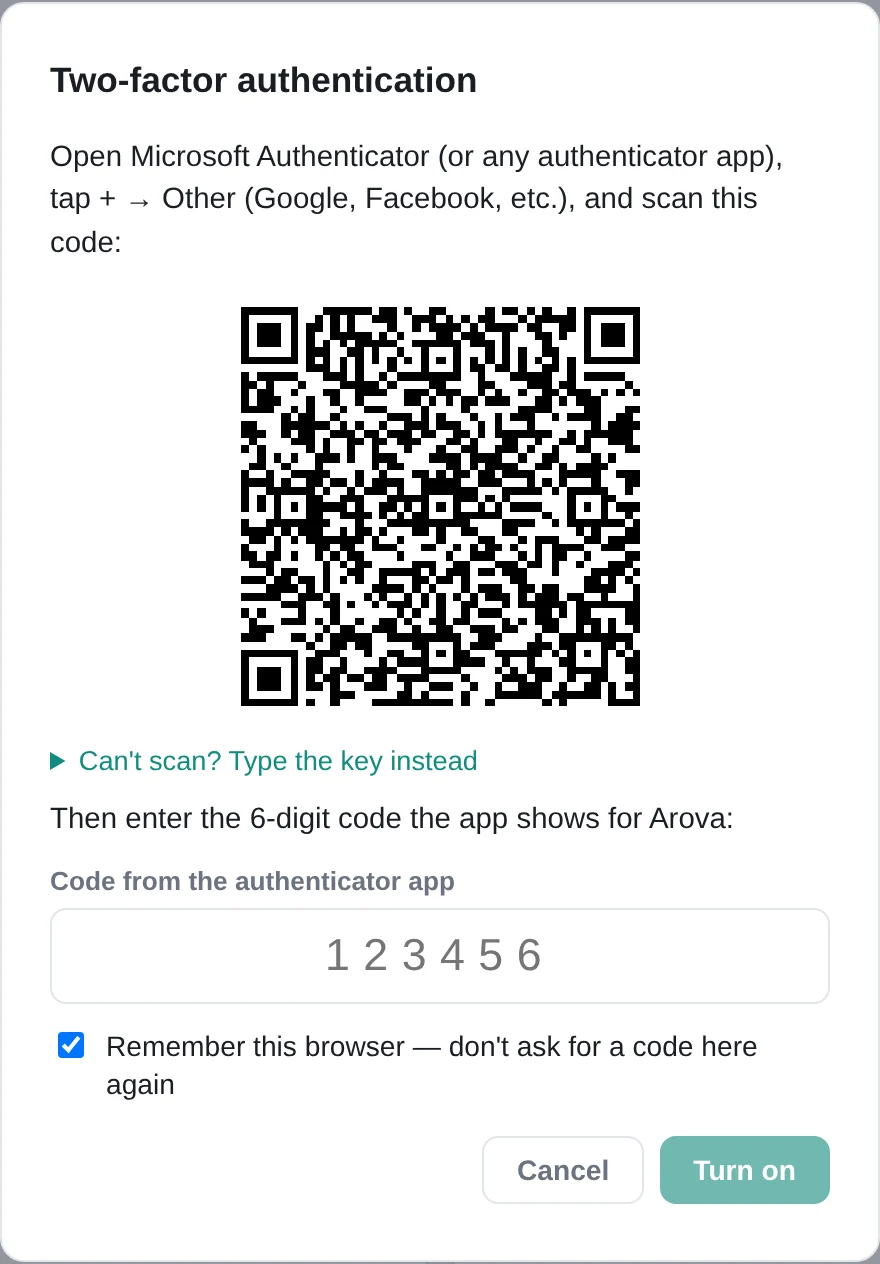
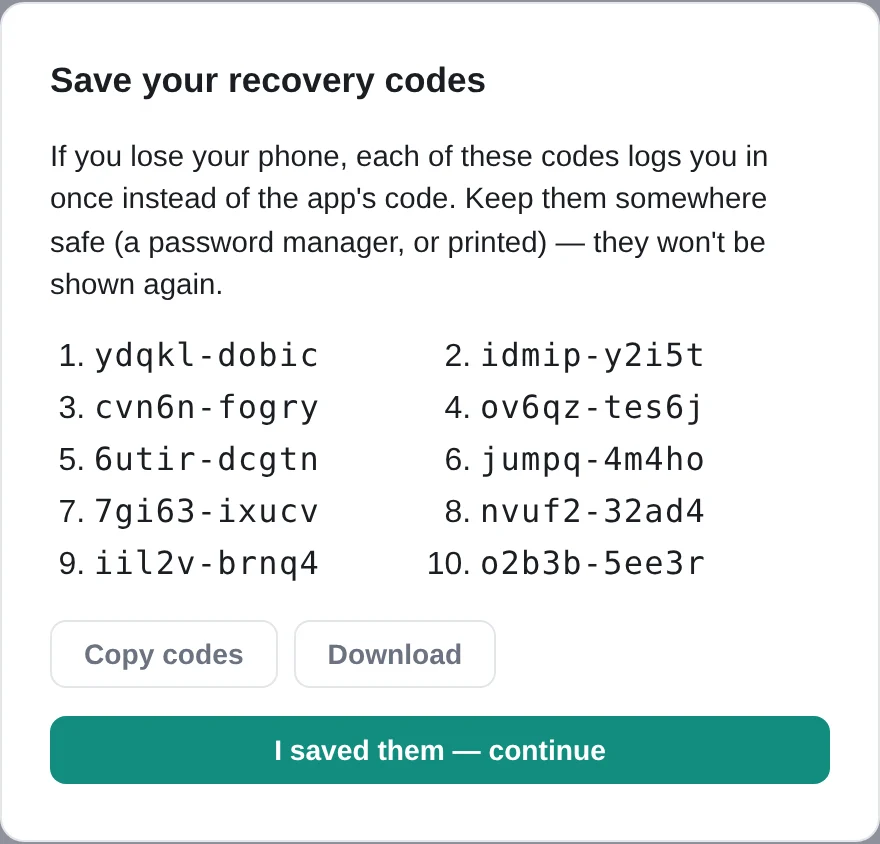
The screenshots in this article come from a test account that no longer exists, so its QR code and recovery codes don't open anything.
3. Logging in
You log in with your email and password as before. Arova then asks for the code: open the app, read the 6 digits shown under Arova, and type them in.
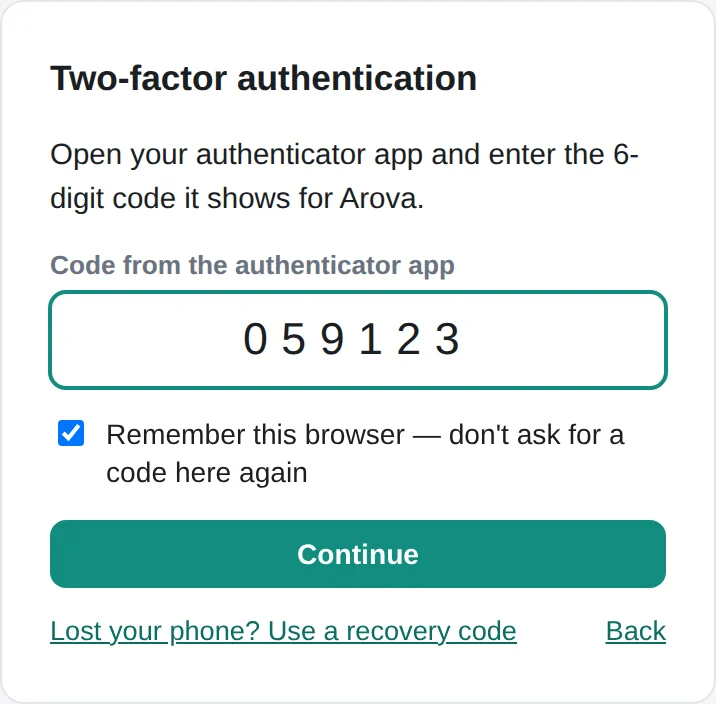
Remember this browser is the box that keeps two-factor authentication painless. Tick it on your own phone and computer and they won't ask for a code again: not tomorrow, and not next year. Only someone on a new device, who doesn't have your phone, hits the second lock.
A browser stops being remembered when you forget it in the two-factor window, when you move the app to a new phone, when you turn two-factor authentication off, or when that browser's cookies are cleared. In a private or incognito window, a code is asked for every time.
4. When the team shares the login
In Arova, each property has one login, shared by the team: the reception desk, the cleaners' phone, the manager. Two-factor authentication doesn't change that. You still have one login, one password and one authenticator, and each device needs the code only once.
The usual way: one person holds the app
- The owner, or the manager, has the authenticator app on their phone.
- A colleague logs in on a new phone or computer with the email and password, as always. Arova asks for the code.
- The colleague calls or messages the person with the app, who reads out the code shown right then. The colleague types it in and ticks Remember this browser.
- That's it: the device is remembered. As before, Arova asks who is using it (for example, “Ana – front desk”). From then on it works exactly as it did without two-factor authentication.
The code only works for about a minute, so read it out while the colleague is ready to type it. If it's too late, the next one appears within 30 seconds.
Two people with the app
To avoid depending on a single phone, scan the same QR code with two phones when you set it up, for example the owner's and the manager's. Both apps then show the same codes, and either person can give one. To add a second phone later, use Move to a new phone and scan the new QR code on both phones (see below).
When someone leaves the team
- Open Logged-in devices and Log out their phone or computer.
- In the two-factor window, Forget their browser, so it asks for a code again.
- Even better, change the password. That logs out every other device at once, and the remembered browsers then need the new password too.
Your devices stay logged in throughout, and the rest of the team only types the new password.
5. Seeing and logging out devices
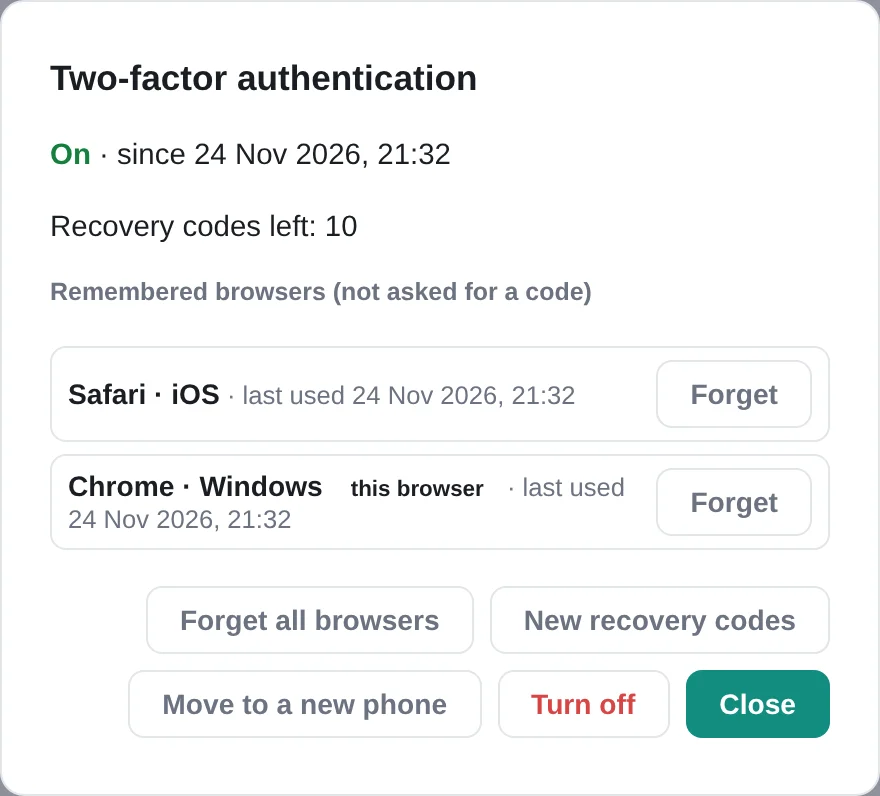
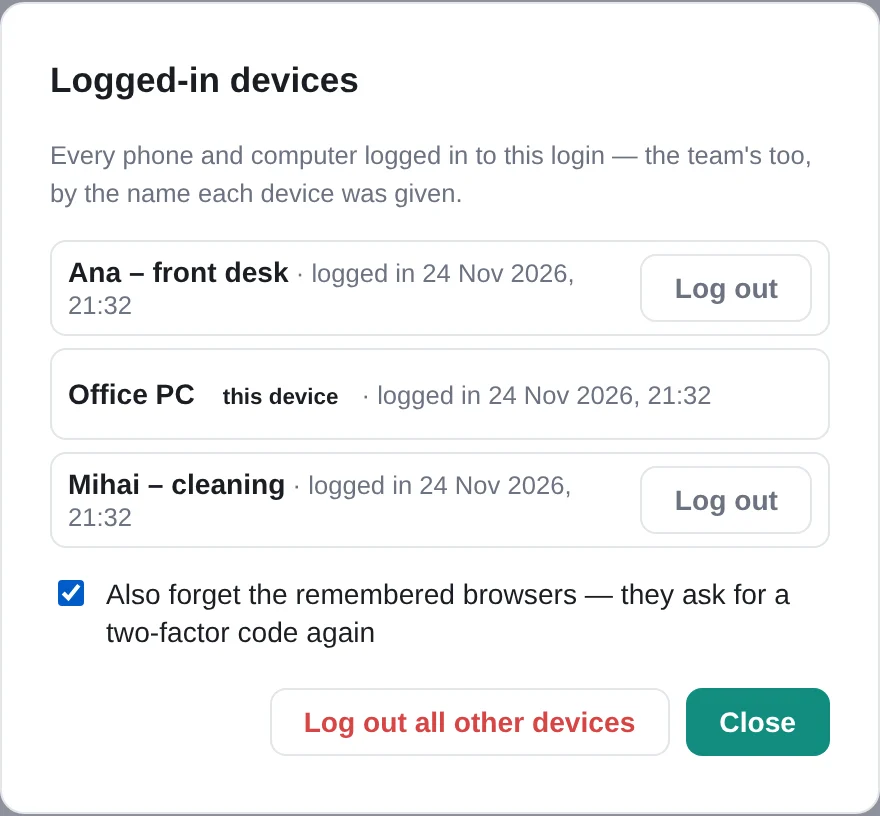
Under Security there are two windows. Two-factor authentication shows the browsers that don't ask for a code, with Forget for each one. Logged-in devices lists every phone and computer logged in to the login, by the name each one was given, with Log out for each one, and Log out all other devices for all of them at once. Tick Also forget the remembered browsers and they'll ask for a code again too.
6. A new or lost phone
- A new phone, with the old one still in hand: open the two-factor window, click Move to a new phone, scan the new QR code with the new phone and enter its code. The old phone's codes stop working, and you get new recovery codes. Some apps, Microsoft Authenticator among them, can also move their accounts to the new phone through their own backup.
- Lost phone: on the login screen, click Lost your phone? Use a recovery code and type one of your saved codes. Each one works once. Then set up the new phone with Move to a new phone.
- No phone and no recovery codes: write to contact@arova.ro. Once we've confirmed it's you, we turn two-factor authentication off for your login, and you set it up again.
Used a recovery code? Arova tells you how many are left. When they run low, click New recovery codes in the two-factor window: new ones replace the old ones.
7. Questions and answers
Does my phone need internet for the codes? No. The app makes the codes by itself, from the time. The phone's clock just needs to be set automatically, which phones do by default.
Can I get the code by SMS instead? No. SMS codes can be intercepted or redirected to another SIM; an authenticator app can't.
Do guests notice anything? No. Two-factor authentication is only for logging in to Arova. Guests' pages, the booking page and Smart Guest Home links work as always.
Will the team have to type codes every day? No. Each device asks once, when it's first used, and then it's remembered.
How do I turn it off? In the two-factor window, click Turn off and enter your password and a code from the app. The remembered browsers are forgotten.
For the reference version of every option, see Two-factor authentication and Logged-in devices in the Arova manual.